AI Agents (MCP)
AI agents like Claude, Claude Code, and ChatGPT can query your CedarDB Cloud projects. They connect through the CedarDB MCP server and sign in with your CedarDB Cloud account. MCP, the Model Context Protocol, is an open standard that lets AI clients use external tools and data. You decide per project whether agents can connect, and per table what they can read or change.
Once connected, you ask in plain language, and the agent writes and runs the SQL:
Build a dashboard of daily revenue per region for the last 90 days, with a filter by product category.Switch agents on for a project
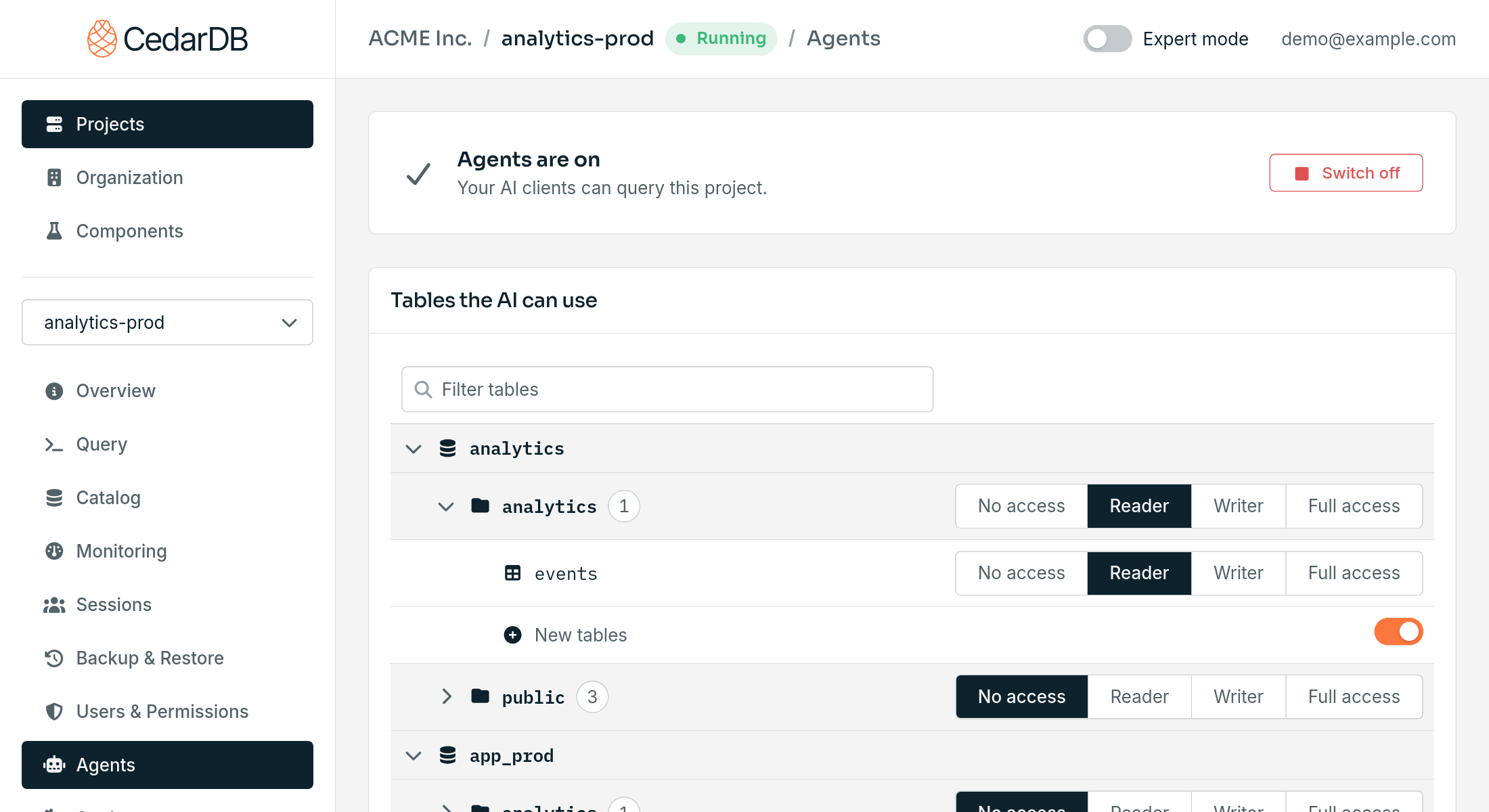
Agents can’t access anything until you allow it. They are off for every new project, and they can’t read any table until you choose it. Switch them on before you connect your AI client, so it finds the project right away.
Switch agents on
Open the project in CedarDB Cloud and go to its Agents tab. Select Switch on. The status changes to Agents are on when your instance is ready for agent access.
Choose the tables agents can use
Under Tables the AI can use, set an access level per table, per schema, or per database. Select Apply to save your changes.
To let agents read everything at once, select Let it read all tables.
Connect your AI client
You add CedarDB to your AI client once. The connection then reaches every project where agents are switched on.
The MCP server URL is:
https://api.app.cedardb.cloud/mcpThis works in Claude on the web, in the desktop app, and on mobile. On Claude Team and Enterprise plans, an organization owner does steps 1 and 2 once for everyone. Members then open Settings, then Connectors, and continue with step 3.
In Claude, open Settings, then Connectors.
Select Add custom connector. Name it
CedarDBand paste the MCP server URL. Leave all other settings as they are.Select Connect and sign in with your CedarDB Cloud account.
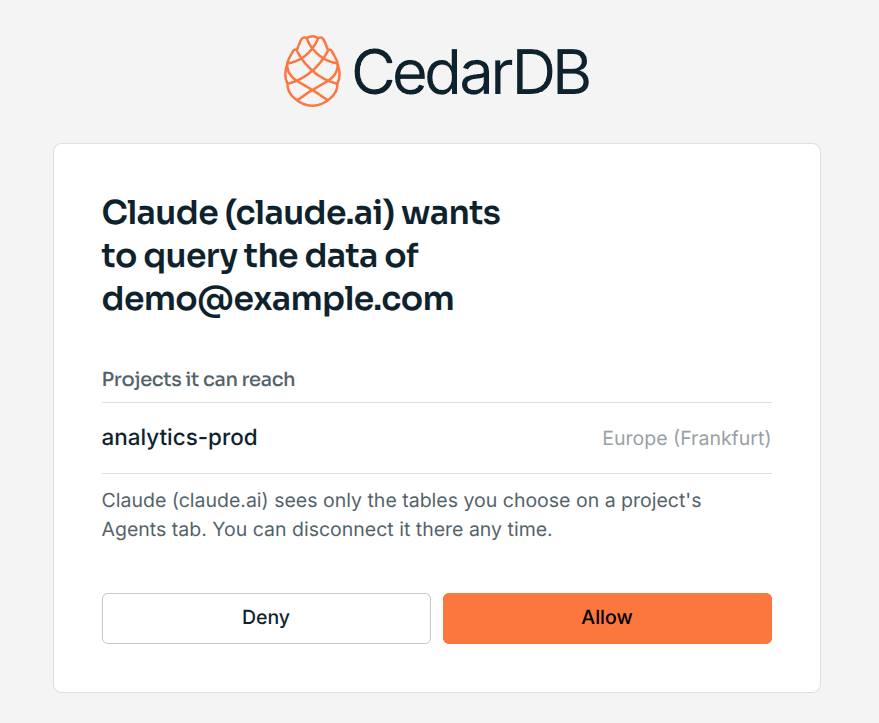
Review the projects the connector can reach and select Allow.
Start a new chat and ask about your data.
You can also find these steps in CedarDB Cloud. On a project’s Agents tab, select Connect your AI. The dialog confirms once your client has connected.
Access levels
Each table has one of four access levels for agents:
| Level | Agents can |
|---|---|
| No access | Nothing. |
| Reader | Read rows (SELECT). |
| Writer | Read, insert, update, and delete rows. |
| Full access | Everything a writer can, plus TRUNCATE and foreign key references. |
To let agents create tables in a schema, switch on New tables under it.
Most AI clients ask you to approve each change before it runs.
Tables created by agents
A table an agent creates belongs to the agents, so your own user can’t read it yet. On the Agents tab, it shows as Created by agent. Select Take ownership to make your user its owner. Agents keep full access to it.
Manage access with SQL
Agents query as the database role cedar_mcp.
It also appears under Users & Permissions.
The Agents tab manages ordinary grants to this role, so you can also use SQL:
CREATE TABLE trees (id integer PRIMARY KEY, species text, height_m numeric);

-- Let agents read the table
GRANT SELECT ON trees TO cedar_mcp;

-- Take the access back
REVOKE SELECT ON trees FROM cedar_mcp;
Agents never see a database password.
CedarDB Cloud keeps the password of cedar_mcp and runs each query for the agent.
It gives cedar_mcp a new password every time the project starts and whenever you switch agents off.
Switch agents off and revoke clients
- Switch agents off for a project. On the project’s Agents tab, select Switch off. Agents lose access with their next query. Your table settings stay in place for when you switch agents on again.
- Revoke an AI client. Under Your AI clients, select Revoke next to the client. It loses access to every project. To use it again, connect it again.
Your AI clients also shows when each client connected and when it last queried.
What you can do
Explore and answer questions
Agents find their way around an unfamiliar schema and answer questions that would be cumbersome to answer by hand as they need multiple queries.
Which customers ordered more this quarter than last, and what do they have in common?Build charts and dashboards
Claude turns query results into charts and interactive dashboards you can share.
Chart our top 20 customers by revenue this year, with each customer's monthly trend.Write code against your schema
Claude Code writes application code, migrations, and tests that match your actual tables. It can check its queries against your data while it works.
Add an API endpoint that returns a customer's open orders. Check the query against the analytics project first.Check data quality
Agents find duplicates, gaps, and outliers, and explain what they found.
Find customers that appear more than once with different spellings of the same email.Change data or create tables
With Writer access or New tables switched on, agents can fix data and build summary tables for you.
Create a table daily_revenue with revenue per region and day, and fill it from orders.Troubleshooting
| Problem | What to do |
|---|---|
| The sign-in page lists no projects. | Switch agents on in a project’s Agents tab, then reload the page. |
| The agent can’t find a table. | Give agents at least Reader access to it on the Agents tab. |
| The agent can’t find a project. | Switch agents on in the project’s Agents tab. |
| The agent reports the project isn’t running. | Start the project in CedarDB Cloud. |
| The agent can’t log in to the project. | Restart the project. This gives cedar_mcp a new password. |
| The agent reports the connection was revoked. | Connect your AI client again. |
| The sign-in says the request expired. | Start connecting again from your AI client. |
