Get Started with CedarDB Cloud
CedarDB Cloud runs CedarDB for you. You get a CedarDB database without servers to set up or maintain. CedarDB speaks PostgreSQL, so your existing drivers, ORMs, and tools work with it.
With CedarDB Cloud, you can:
- Run analytical and transactional queries on the same data.
- Back up a project and restore it in a few clicks.
- Let AI agents like Claude and ChatGPT query your data, with table-level access you control.
- Try it with a free trial for your first project.
This guide takes you from sign-up to your first query.
Sign up
- Open the CedarDB Cloud sign-up page.
- Enter your details and confirm your email address. If the confirmation email doesn’t arrive within a few minutes, check your spam folder.
- Sign in at app.cedardb.cloud.
When you first sign in, CedarDB Cloud asks you to set up your organization. Give it a name, usually your company or team, and its billing country. The organization groups your projects and holds your billing details and limits. Each project runs its own CedarDB instance, with its own storage, connection details, and backups.
Free trial
Your organization’s first project can run as a free trial for 30 days. The trial runs on a Cloud I2 instance with up to 64 GiB of storage.
Before your first project starts, you need to add a payment card, which CedarDB Cloud verifies. You’re never charged for the trial project before the trial ends.
Create a project
Open the project form
On the Projects page, select Create project.
Choose the project’s settings
| Setting | Description |
|---|---|
| Project name | A name that is unique among your projects. |
| Region | Where the project runs. Choose the one closest to your applications. |
| Storage | The project’s provisioned storage, up to your organization’s limit. |
| Instance type | The CPU and memory of the project’s instance, for example Cloud I16. |
The form shows the project’s monthly price.
Create the project
Select Create project.
CedarDB Cloud then creates the project and starts your database instance. Once the project’s status reads Running, the instance is ready.
Connect to your project
The Connection card on the project’s Overview tab shows the connection string once the project runs.
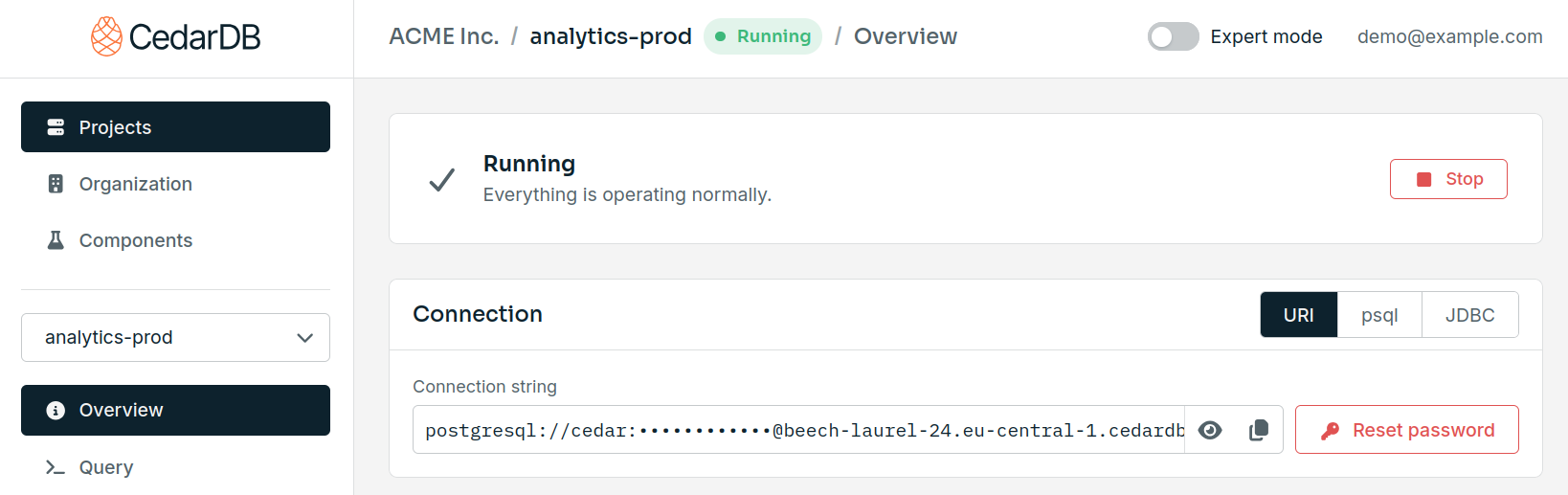
Choose the format your client expects:
| Format | Use it for |
|---|---|
| URI | Most drivers, ORMs, and tools. |
| psql | The psql command line, ready to paste. |
| JDBC | Java applications and JDBC-based tools. |
The connection string includes the password.
Every project starts with the user cedar and the database postgres on port 5432.
Connect with psql and run a first query:
psql "postgresql://cedar:<password>@<host>:5432/postgres"CREATE TABLE trees (id integer PRIMARY KEY, species text, height_m numeric);
INSERT INTO trees VALUES (1, 'Oak', 12.4), (2, 'Birch', 8.1);
SELECT species, height_m FROM trees ORDER BY height_m DESC; species | height_m
---------+----------
Oak | 12.4
Birch | 8.1To run SQL right in your browser, use the project’s Query tab. The Clients section shows how to connect from your language, ORM, or tool.
Next steps
- Manage Projects: start and stop a project, reset its password, or delete it.
- Monitoring: follow how your instance is doing.
- Backups: back up your project and restore it.
- AI Agents (MCP): let Claude, Claude Code, and ChatGPT query your project.
